
If your work site has a QR code poster at the entrance, you can use it to clock in and out (CI/CO) instantly — no need to select your location manually.
Option 1: Scan with your camera
Step 1 - Open your phone's default camera and point it at the QR poster at the office entrance
Step 2 - The Swingvy app opens automatically with your location pre-filled
Step 3 - Tap Clock In or Clock Out to confirm
Option 2: Use the in-app QR scanner
Step 1 - Tap the Clock In or Clock Out button on the Swingvy home screen. If your assigned location has QR enabled, the in-app scanner opens automatically
Step 2 - Point the scanner at the QR poster. Once recognised, you are taken to the CI/CO page with your location pre-filled
Step 3 - Tap Clock In or Clock Out to confirm.
Note: In order to scan the QR code, you would need to grant Swingvy app to have access to the camera. If permission is not granted, a guidance screen with a "Go to Settings" button will show to grant permission.
Frequently Asked Questions
What should I do if I can't scan the QR code?
Step 1 - On the QR scanner screen, tap "Can't scan QR? Request approval instead"
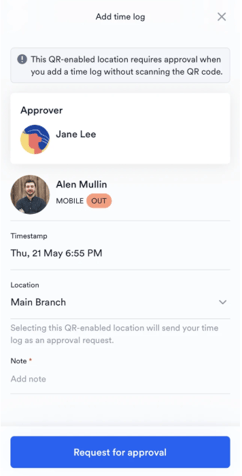
Step 2 - Select your location and fill in your time log details.
Step 3 - Tap "Request for approval". Your manager will review and approve or decline the request.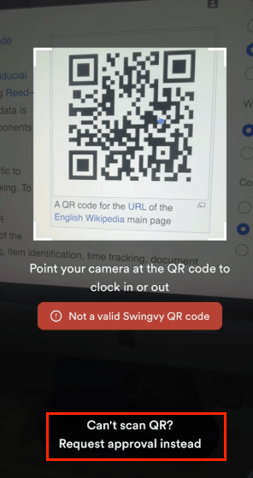
What are some scenarios that would cause an error to QR code CI/CO?
| Scenario | Error Message |
| Scanned QR of a location the employee is not assigned to | "User is not assigned to the QR token location" |
| Scanned a deactivated/regenerated old QR | "QR token is invalid or inactive" |
| Scanned QR with camera while logged out | You must log in first, then go to CI/CO page |