
Clock in and out (CICO) through QR code is an attendance verification method that allows employees CICO by scanning a static QR poster at the office entrance — designed for environments where GPS signals are unreliable, such as basements or high-rise buildings or even for the employer to implement additional measures to make sure that the employee is on site.
Setting up QR code for a location
Step 1 - Go to HR Hub > Settings > Company settings > Locations and select a location
Step 2 - Scroll to the CI/CO Verification section and toggle ON the QR Code and a QR code will be generated immediately
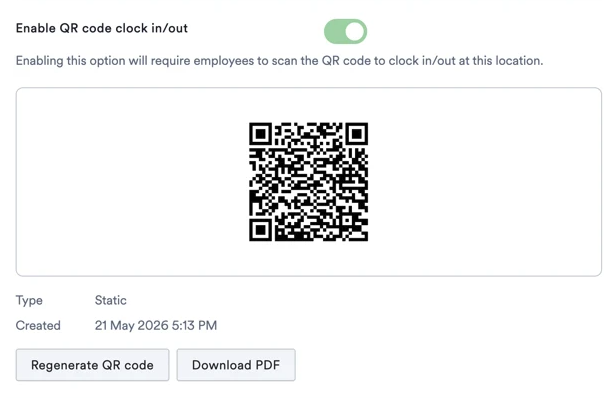
Step 3 - Click "Download PDF" to save the printable poster. Print it and post it at your office entrance.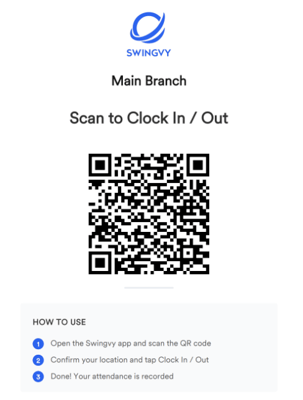
Note: If the posted QR code is compromised or needs replacing, you can regenerate a new QR code by clicking "Regenerate". The existing QR will be invalidated immediately, and employees who scan the old poster will receive an error message. Make sure to reprint and re-post the new QR code before employees arrive at the site.
Approving QR fallback requests
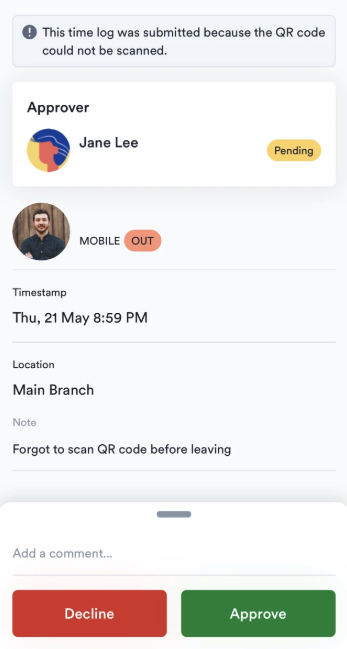
When an employee cannot scan the QR due to a device issue, they can submit a manual time log for approval. The Time Manager or Admin will receive a request noting: "This time log was submitted because the QR code could not be scanned."
Step 1 - Open the approval request from your notifications or HR Hub > Approvals.
Step 2 - Review the submitted time and tap Approve or Decline.
- Approve → the time log is finalised as an official CI/CO record.
- Decline → the time log is deleted and the attendance is not recorded. The activity log entry is preserved for audit purposes.
Note
- Order of verification: If you have enabled both geo-fencing and QR code, QR code is verified first and then the GPS location. If the employee fails to utilise the QR code, CI/CO is blocked immediately and GPS location will not be checked.
- Location deletion: When you delete or deactivate a location, the QR token for that location will be automatically deactivated. Any subsequent scans of the printed poster will fail.