
You can save time during payroll runs by updating employee additions, deductions, and overtime in bulk using an Excel spreadsheet.
Step 1: Download the Bulk Update Template
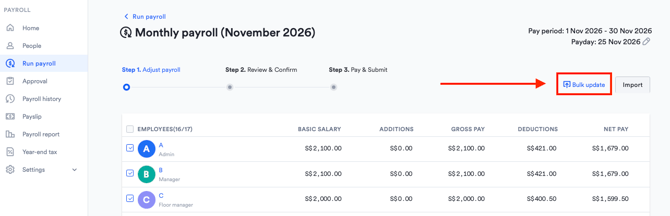
- While running payroll, click the Bulk update button. This opens the Update payroll items in bulk panel.
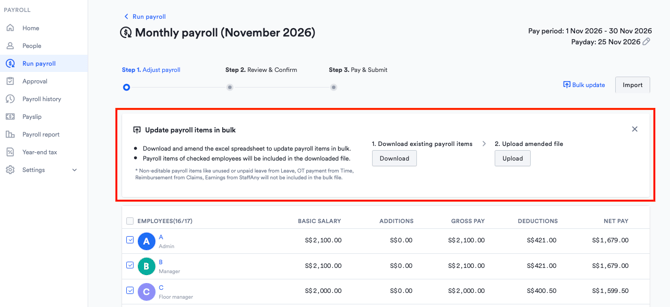
- Click Download to save the Excel template to your computer.
- The file automatically includes all employees selected in Step 1 of your payroll run, along with any existing values already entered.
Note:
-
The bulk update panel stays open across page refreshes for all admins until someone closes it by clicking the X icon
-
Your downloaded file will be named based on the payroll type and pay period (e.g., bulk_payroll_items_monthly_01112026-30112026.xlsx).
Step 2: Fill Out the Excel Spreadsheet
Open the downloaded Excel file. You will see two tabs: Instructions (a locked reference guide) and Payroll items (where you enter your data).
What You Can Edit
- Additions, Deductions, and Overtime: Enter amounts or units (hours/days) under the corresponding columns configured in Payroll > Settings > Payroll items.
- Salary to Pay (Ad hoc payroll only): Enter the amount you wish to pay, up to the employee's Remaining amount. (Note: This field is locked for Monthly and Mid-month payrolls).
- No. of Units (Non-monthly employees only): Enter the number of weeks, days, or hours worked for weekly, daily, or hourly employees.
What You Cannot Edit (Locked or Excluded)
- Employee Details & Basic Salary: Employee names, departments, and basic salaries are locked and cannot be changed in the file.
- System-Synced Items: Reimbursements submitted from Claims, overtime imported from Time, and Statutory deductions are excluded from the spreadsheet and can only be viewed or managed directly in the payroll table.
Formatting & Entry Rules
- Numbers only: Only enter numeric values. Entering plain text will trigger an error or be ignored.
- Zero values: Any item left at
0will not be imported into the payroll table. - Rounding: Values automatically round to the appropriate decimal places based on your country and unit type (e.g., 2 decimal places for SGD/MYR currency, whole numbers for TWD, and up to 4 decimal places for units).
Step 3: Upload the Completed File
- Return to the Update payroll items in bulk panel in your payroll run.
- Click Upload and select your saved Excel file.
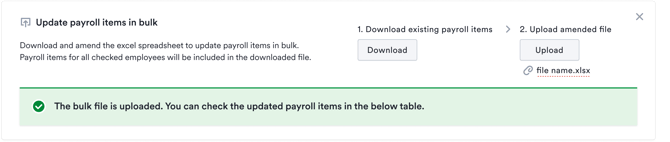
- Wait for the upload confirmation message. Once successful, the payroll table will automatically update with your new figures. (Note: Upload status messages are temporary and disappear once you refresh the page).

Troubleshooting Upload Errors
If your file fails to upload, an error banner will indicate what went wrong:
| Error Message | Cause | How to Fix |
| "Please upload a correct file for [Payroll Type] payroll ([Month Year])." | You uploaded a file meant for a different pay period or payroll type (e.g., uploading a Monthly file into an Ad hoc run). | Download and use the template specifically from your current payroll run. |
| "There is an invalid value in the file. Please upload it again." | A cell contains non-numeric text, or the Salary to pay exceeds the Remaining amount. | Check the specific Row and Column listed in the error banner, fix the value, and re-upload. |
| "[Payroll item name] does not exist / is missing in the file..." | A payroll item was added, deleted, or edited in Payroll Settings after you downloaded the template. | Download a fresh template to sync the latest payroll item settings, re-enter your data, and upload again. |