
When an employee leaves the company with unused leave days, you can pay them out automatically through Payroll — no manual calculations needed. This feature is available for companies subscribed to both Swingvy Leave (Premium) and Swingvy Payroll. There are two parts to set up: 1) The admin enables termination payout in Leave settings, then 2) the payroll manager configures the pay item and runs the import on Payroll.
Enable termination payout (Leave)
Step 1 - Go to Leave > Settings, then open the leave type you want to configure (Annual leave, Off-in-lieu, or a custom type).
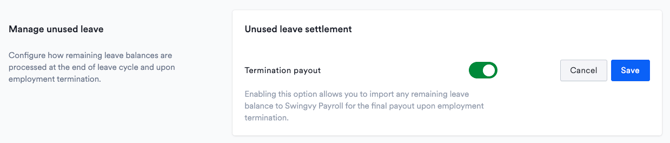
Step 2 - Scroll down to "Manage unused leave" > "Unused leave settlement" and click Edit.
Step 3 - Toggle Termination payout to ON and click Save.
Note:
- This feature is available only for Annual leave, Off-in-lieu, and custom leave types — not Sick, Maternity, or other statutory leave types.
- A Payroll badge appears next to the leave type in the list once enabled noting the integration between Leave and Payroll (requires an active Swingvy Payroll subscription).
Configure the Leave encashment pay item (Payroll)
Step 1 - Go to Payroll > Settings > Payroll items > Additions.
Step 2 - Find Leave encashment, click Edit, set "Amount to Calculate" based on employees' salary, choose the pay items to include, and click Save.
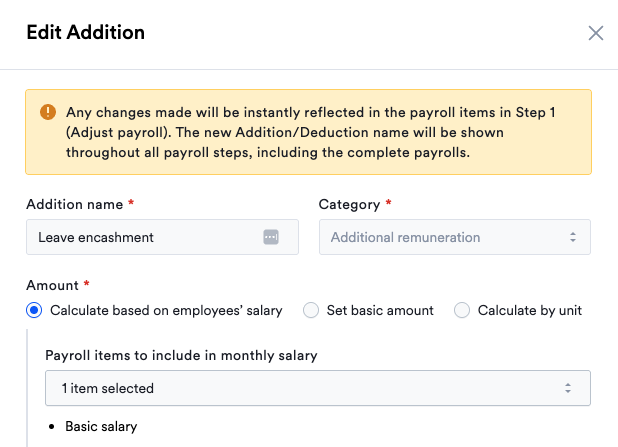
Caution: If you do not configure the leave encashment method, you will not be able to import the data and will see an "Unable to import unused leave" warning sign.
Example of Leave encashment payout
- Monthly salaried employees
Total wage = Basic salary + Additions − Deductions, taken from the selected salary reference monthCountry Time Scheduling Singapore (Total wage x 12 months) / (52 weeks x 'Weekly working hours' from Workgroup setting) x No. of days (Total wage x 12 months) / (52 weeks x 'Normal working hours per week' from Pay policy setting) x No. of days Malaysia Total wage / working days in the month x No. of days Same as Time
- For weekly, daily, or hourly employees, the payout is calculated as the employee's rate multiplied by the number of days being encashed (e.g. for a daily rate: daily rate × No. of days).
Import unused leave into a pay run (Payroll)
Once the settings above are complete, the admin can import unused leave balances directly into the pay run.
When running payroll, if there are employees leaving that month with unused leave to settle, the admin will see a banner at the top of the Run payroll screen. Click "Encash leave" on the banner to go straight to the import dialogue.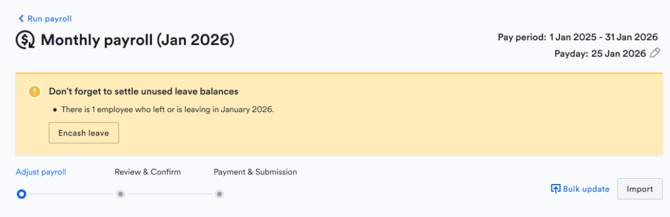
Step 1 - In Run Payroll > Step 1, click the Import dropdown and select "Import unused leave" from Leave.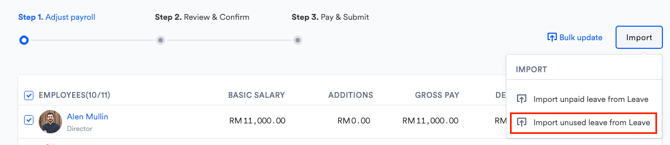
Step 2 - Review the list of employees and their leave balances. Tick the employees and leave types you want to encash, then click Import.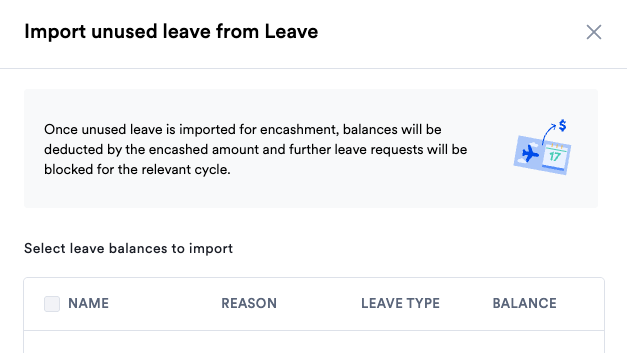
The list will be automatically filtered based on the type of payroll:
-
Monthly and Mid-month payroll: Employees terminating in the current payroll month.
-
Ad hoc payroll: Employees terminating the current payroll month or the previous month.
-
Only employees with a positive balance will appear. If a balance has already been imported in another pay run, it won't appear again.
Some employees may not appear on the list:
-
The employee is not included in this pay run — tick them in the payroll table first.
-
They have pending leave requests — those need to be approved or rejected before you can encash their leave.
-
No monthly payroll has been completed yet (Ad hoc/Mid-month only) — the system needs a completed monthly payroll to calculate the payout rate.
Implication of importing unused leave
Leave balance
Once leave is imported, the employee's balance is decreased by the number of encashed days. In the balance detail view, you will see a new "Leave encashed" row showing the number of days that has been paid out and in which payrun.
The updated balance formula is:
Total balance = Accrued + Adjusted + Carry forward − Expired − Taken (Approved) − Taken (Pending) − Encashed
Note: If the employee's termination date falls outside the current leave cycle (e.g. the payout was processed in a later payroll run), the "Leave encashed" row won't appear in the balance dialogue for that cycle.
Balance change history
Every import and reversal is logged in the employee's Leave balance history:
-
On import: The reason reads "Payroll manager imported unused leave from [Leave cycle] cycle to [Payroll name] for termination payout." with the balance before and after.
-
On reversal: The reason reads "Payroll manager cancelled import to [Payroll name]. Balance is restored for [Leave cycle] cycle." with the balance before and after the adjustment.
Caution: Certain actions are blocked once a leave has been encashed for the specific leave type.
-
Admin won't be able to manually adjust the relevant employee's balance
-
The employee can no longer apply for leave for that leave type
-
Admin and approver cannot edit or delete their leave records
-
Admin cannot change the termination date or cancel offboarding
-
To enable the above actions again, you need to remove the encashment from Payroll first
Review and adjust the payout amount (Payroll)
After the import, you can adjust the payout calculation before finalising payroll, if needed. There are two types of balances shown:
-
Unused carry-forward: Any leave balances that are carried forward and has not been used or expired.
-
Balances excluding carry-forward: The rest of the balance from this cycle.
By default, the system will use the termination month as a reference to calculate and apply the unused leave encashment. If you would like to change this,
-
Click Edit on the Leave encashment row, select a different month from the Salary reference month dropdown, and click Save. The payout amount will recalculate automatically.
(You can reference the current payroll month or any month from the past 2 years where a monthly payroll was completed.)
Remove an imported encashment (Optional)
If you've imported leave but need to undo it before payroll is finalised:
-
Remove one employee's encashment: Click the 🗑️ next to their leave encashment section and confirm.
-
Remove all encashments: Click "Delete all" in the Leave encashment header and confirm.
-
Untick an employee from the pay run: This also removes their imported leave encashment — a confirmation prompt will appear.
Once removed, the employee's leave balance is restored and they can apply for leave again. A record of the reversal is created in their "Leave balance history".
FAQ
Why can't I turn on termination payout for a leave type?
You need an active Swingvy Payroll subscription to enable it. Without one, you won't be able to activate it. If you've recently subscribed and still can't enable it, check your billing settings or contact support.
Why is the import dialog showing "Unable to import unused leave"?
The Leave encashment pay item isn't set to calculate based on employees' salary. Go to Payroll > Settings > Payroll items > Additions, open Leave encashment, and update the Amount setting.
Why is an employee missing from the import list?
A few possibilities are 1) their leave balance is zero or negative, 2) their leave type doesn't have Termination payout enabled, 3) they've already been imported in another pay run, or 4) they're terminating in a different month from the one your payroll covers.
Why is an employee's row greyed out?
Either they're not included in this pay run (tick them in the payroll table first), they have pending leave requests that need resolving, or — for ad hoc and mid-month payroll — there's no completed monthly payroll to base the calculation on yet.
Can I import the same employee's leave twice?
No. Each employee + leave type combination can only be imported once per leave cycle. If you need to change the amount, edit the salary reference month or delete and re-import.
Why can't I edit or delete a leave record?
If the employee's leave type has been included in a final settlement payout and they're still terminated. Therefore, editing and deleting is blocked to prevent discrepancies. Remove the encashment from Payroll first to make your changes, then re-import.
Why can't I adjust the leave balance?
Once leave is encashed, balance adjustments are blocked for that leave type to keep Payroll and Leave in sync. Remove the encashment from Payroll first, adjust the balance, then re-import.